The Reports & Analytics section in Kejarent provides users with detailed and interactive views of financial and operational data. It helps property managers easily track transactions, monitor utility usage and analyze revenue trends across all apartments.
Each subsection below represents a key part of the reporting dashboard, with responsive DataTables for organized data visualization and insights.
Rent Transactions
The Rent Transactions report provides a summary of all rent-related payments made by tenants. It displays detailed transaction records in a tabular format, allowing sorting and filtering by date, tenant and receipt number.
- Tenant Name – Name of the tenant who made the payment.
- A/C No – Tenant’s account number linked to their rental unit.
- Receipt No – Unique M-PESA reference number assigned to the rent payment.
- Amount In – Amount of rent received.
- Transaction Date – Date when the payment was made.
- Narration – Description or remarks for the transaction.
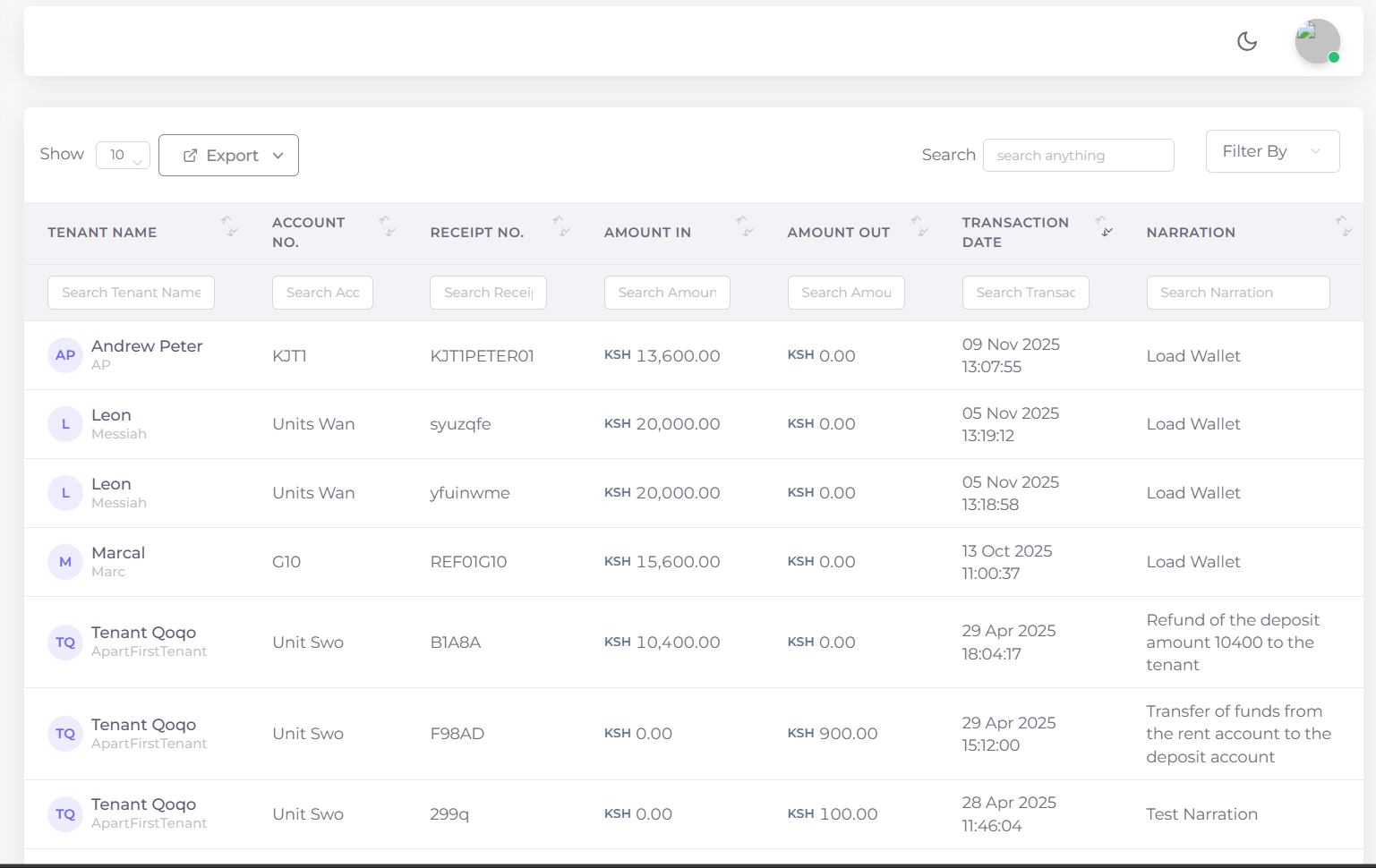
Figure 1: Rent Transactions table showing detailed rent payments from tenants.
Utility Transactions
The Utility Transactions section provides an overview of all utility-related payments including water, electricity, garbage, internet, and other service charges. Each transaction displays both income and deductions with accurate timestamps.
- Tenant Name – The tenant associated with the transaction.
- A/C No – Account number for the utility being tracked.
- Receipt No – Reference number for the utility transaction.
- Amount In – Amount received from the tenant.
- Amount Out – Any deductions or outgoing payments.
- Transaction Date – Date of the transaction.
- Narration – Additional transaction details or remarks.
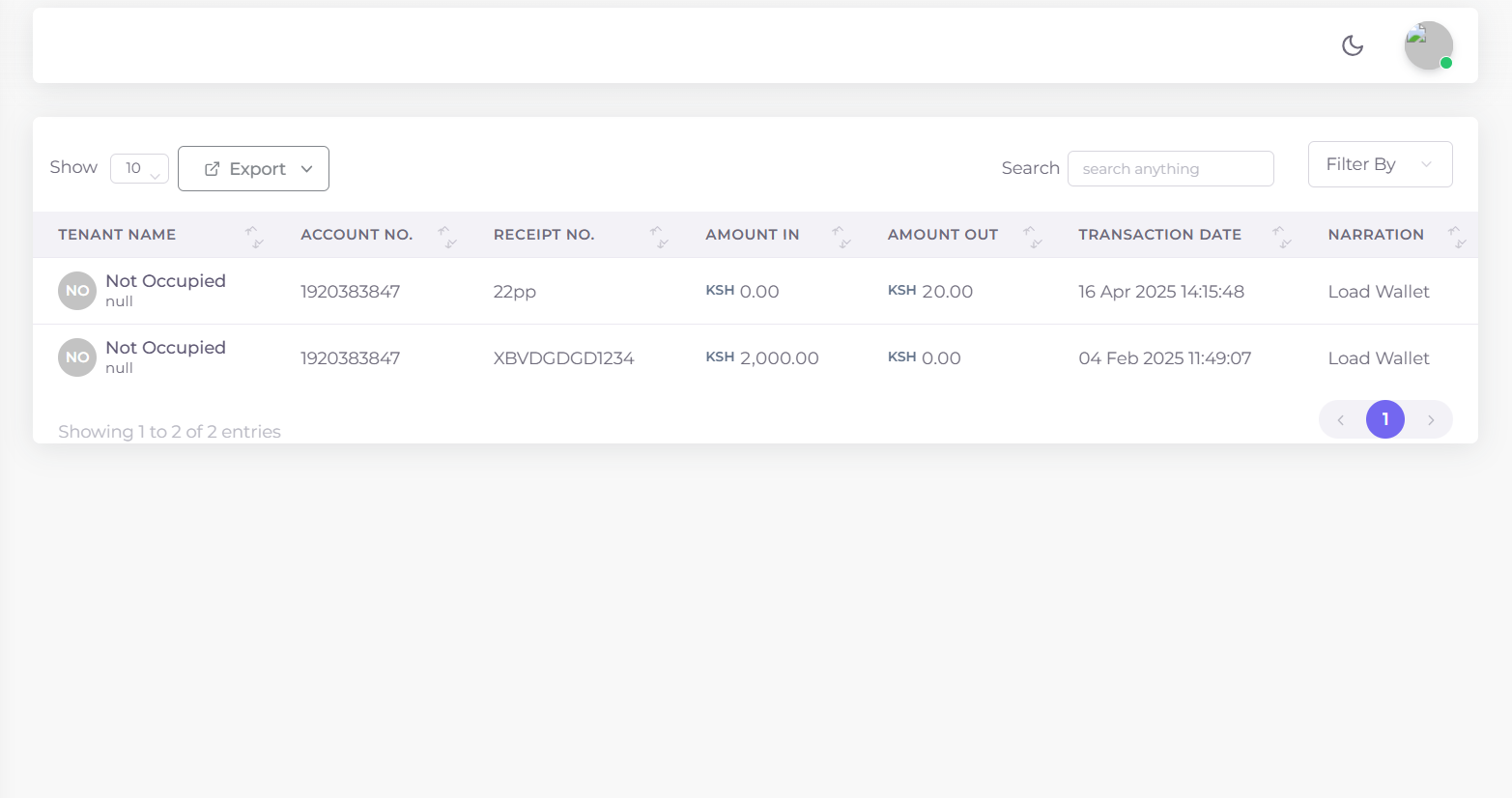
Figure 2: Utility Transactions table showing both income and expense records for utilities.
Water Consumption
The Water Consumption report tracks water usage across all apartments and accounts. It allows users to select a specific account and view total consumption over a custom date range.
- Select Account – Choose an account number from a searchable dropdown list.
- Total Consumption – Auto-calculated field (read-only) showing the total water used.
- From Date – Defaulted to the last 30 days.
- To Date – The end date of the reporting period.
Once the filters are selected, the system displays the results in a DataTable with:
- Apartment – The apartment name or block.
- Account Number – The selected water account.
- Consumption – Total units of water used within the selected range.
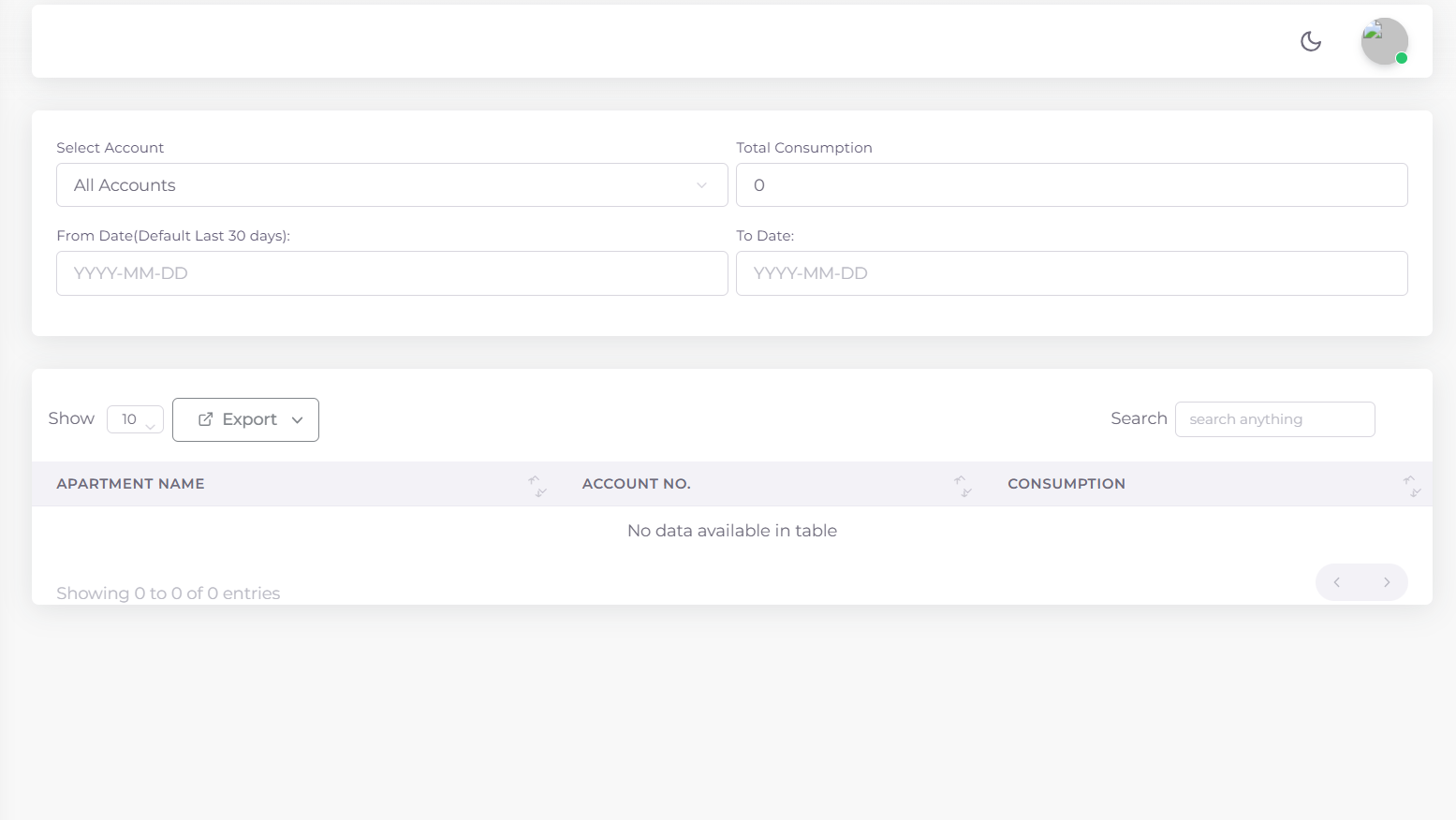
Figure 3: Water Consumption table showing usage by apartment and account.
Revenue Collection
The Revenue Collection report provides a comprehensive view of all funds collected across different account types and payment methods. It helps administrators monitor total income and performance by category.
- Select Account Type – Choose from accounts such as: Float, Current Acc, Current Acc 1, Water Meter, Rent Acc, Data Acc, Six Months (8% p.a), 1 Yr (10% p.a), Power Acc, Deposit Acc, Internet Acc, Garbage Acc, Service Charge Acc, Water Deposit Acc .
- Total Collection – A read-only field showing total income during the period.
- Select Payment Mode – Options include Cash, Bank, MPESA, Float.
- From Date – Defaulted to the last 30 days.
- To Date – The end date for data retrieval.
The results appear in a DataTable displaying:
- Apartment – The apartment name or block.
- Account Number – The selected water account.
- Collections – Total collections used within the selected range.
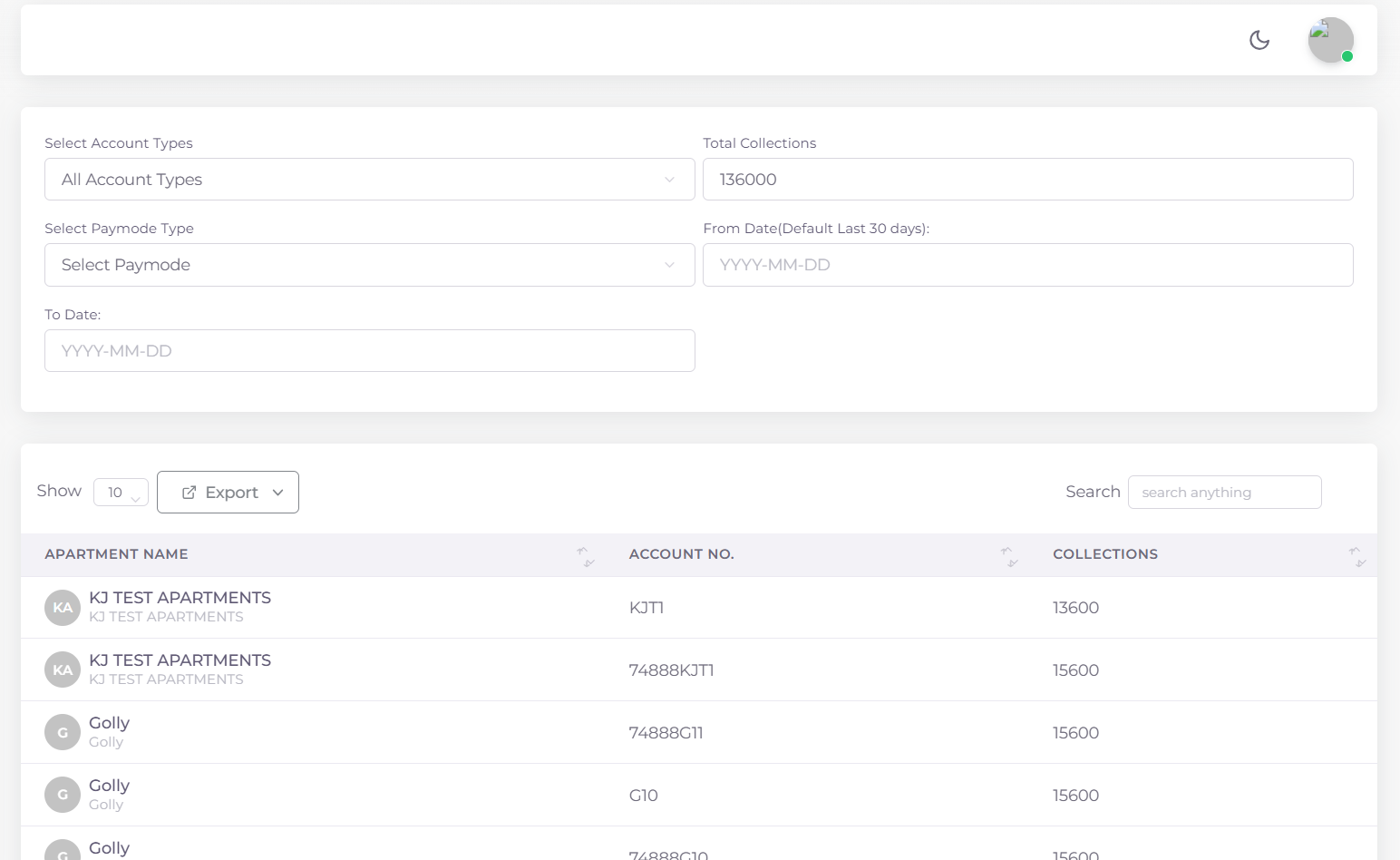
Figure 4: Revenue Collection table summarizing payments by account and mode.
All report sections are designed for transparency and ease of analysis — providing a clear picture of both financial and operational activities. These reports can also be exported for accounting or audit purposes.