The Make Payments section allows you to top up or adjust a tenant’s account balance through different payment modes. It’s designed to make it easy for property managers to record payments or corrections such as cash deposits, MPESA transactions or float adjustments.
This form ensures all financial activities are accurately tracked within the system and directly reflected in the tenant’s account balance.
Steps to Make a Payment (Account Top-Up):
-
Select the Paymode — choose from:
- Cash – for direct cash payments.
- Bank – for payments made through bank deposits or transfers.
- MPESA – for mobile money payments.
- Float – for internal or system-based transactions.
- Enter the Reference Number for the transaction (e.g., MPESA code, bank slip number, or internal reference). This helps ensure traceability and accountability.
- Choose the Deposit Account from the dropdown list. This dropdown includes all available deposit accounts and supports a search functionality to help you find the correct one quickly.
-
Select the Transaction Type — choose between:
- Credit – when adding funds to the account (top-up or payment).
- Debit – when reducing the account balance (correction or charge).
- Enter the Amount to be credited or debited to the selected account.
- Once all fields are filled, click Submit to record the transaction. The system will automatically update the tenant’s balance and log the payment under their transaction history.
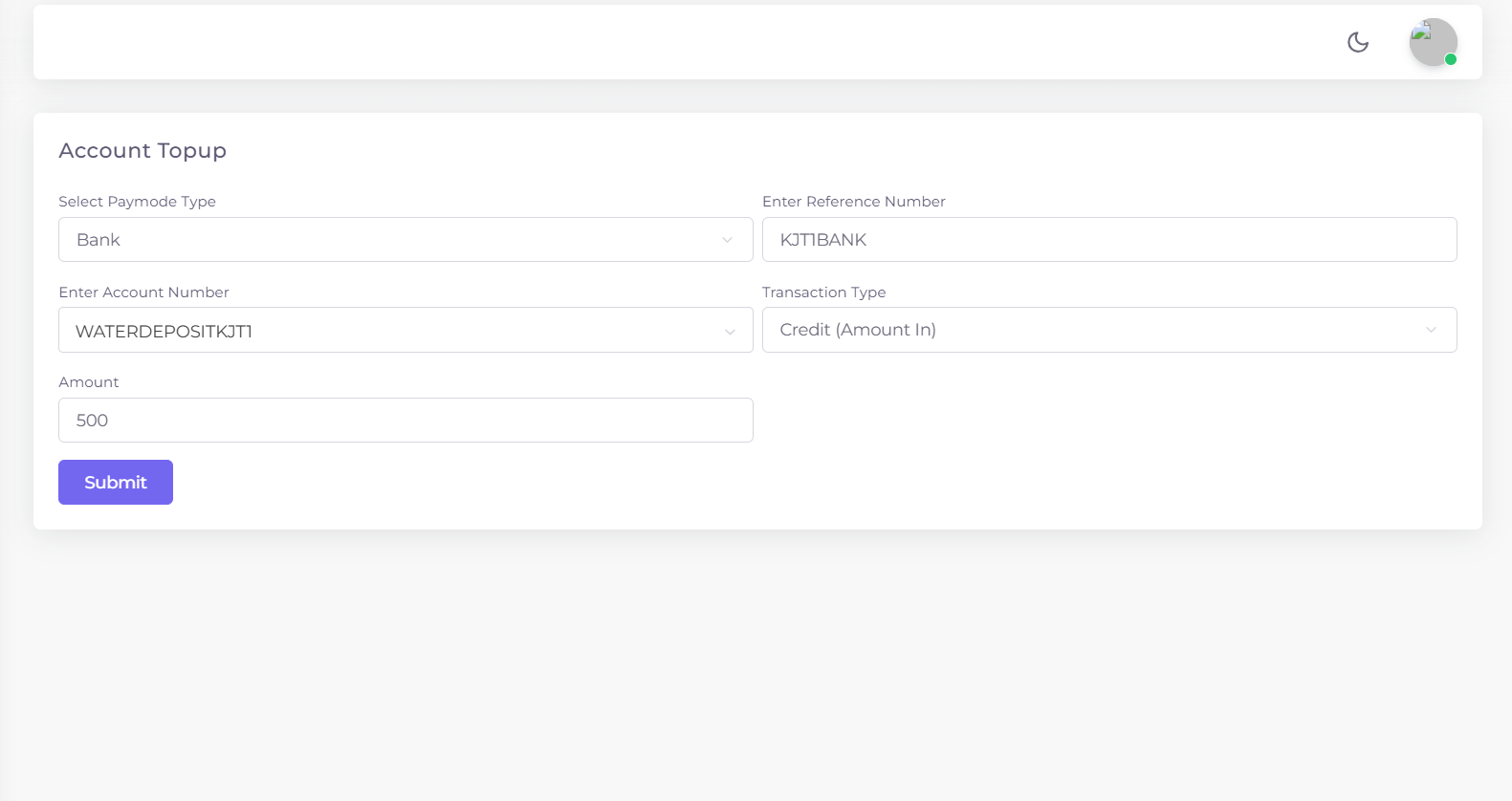
Figure 1: Make Payments form showing paymode, reference number, transaction type and amount fields.
This section provides a centralized way to handle all payment operations. Whether the payment comes from a tenant, an internal adjustment or an offline transaction, it’s all captured within the Make Payments module for transparent financial management.